
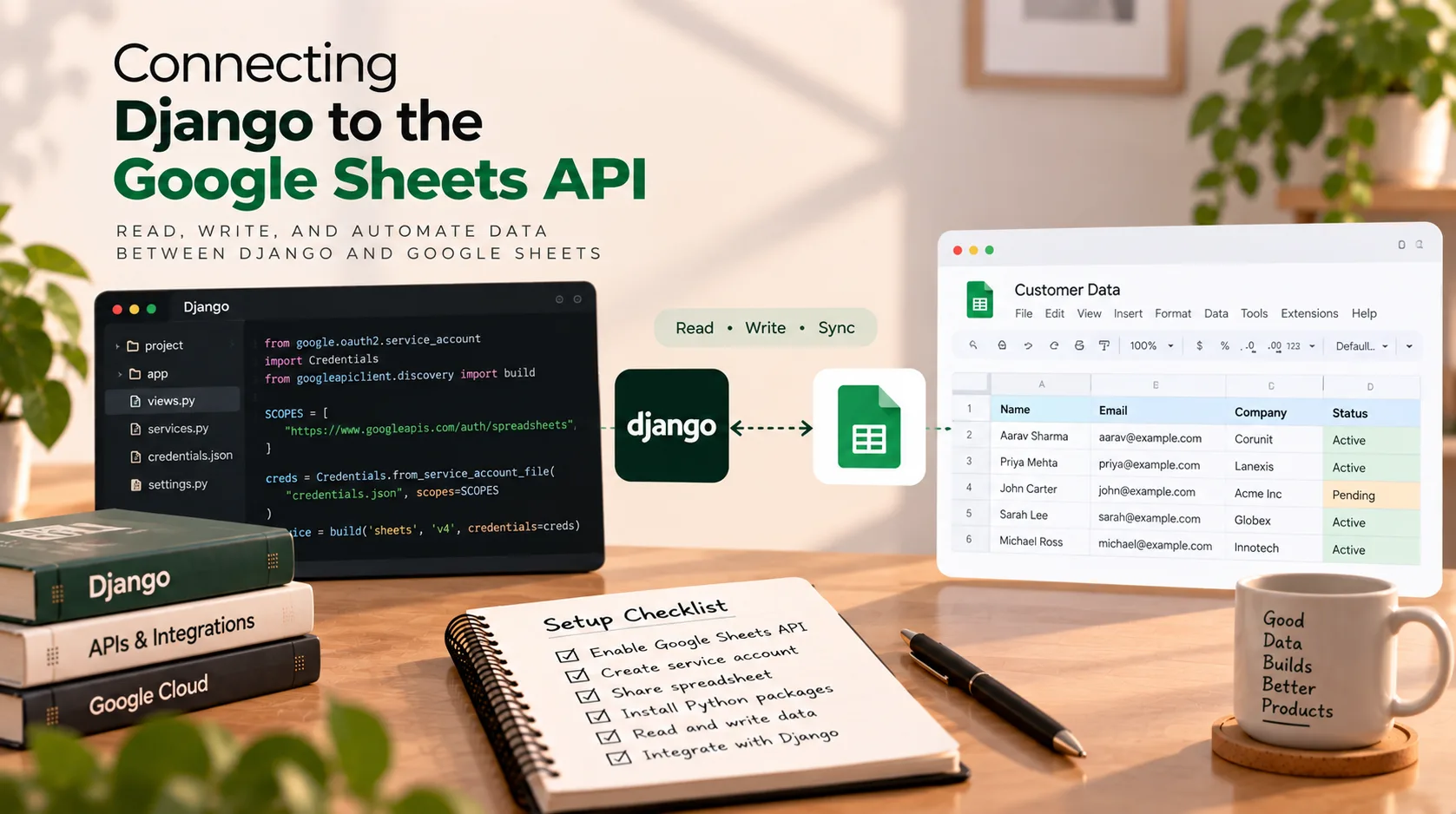
Connecting Django to the Google Sheets API
Google Sheets is often where a business keeps operational data: lead lists, inventory, content calendars, order trackers, onboarding records, or internal reports. When another application needs to read or update that information, manually copying rows between systems quickly becomes tedious.
If your application is built with Django, you can connect it to Google Sheets through the Google Sheets API. That lets your backend read spreadsheet values, update ranges, and append new rows as part of an application workflow.
For example, a Django portal could append a submitted enquiry to a shared operations sheet, retrieve a small configuration table, or sync selected records with an existing business process.
This tutorial walks through a practical server-to-server setup using a Google Cloud service account, the Python client libraries, and Django. It also explains when OAuth is a better fit, how to avoid common errors, and what to consider before using a spreadsheet integration in production.
What you will build
By the end, you will have a small Django integration that can:
- Authenticate with Google using a service account.
- Read values from a specific spreadsheet range.
- Append a row to a spreadsheet.
- Keep credentials outside your source code.
- Call the integration from a Django view or service layer.
This example assumes your Django backend accesses a spreadsheet owned or managed by your team. If each user must connect their own Google account and choose their own files, see the OAuth section below instead.
1. Understand the integration
The basic flow looks like this:
- Create or select a project in Google Cloud.
- Enable the Google Sheets API.
- Create a service account and securely obtain its credentials.
- Share the target spreadsheet with the service account's email address.
- Install the Python libraries in your Django environment.
- Use the Sheets API to read or write a range.
- Call the integration from your application code.
A service account is a non-human identity intended for server-to-server access. It is useful when your backend needs to access a known spreadsheet without asking an end user to sign in every time.
The service account does not automatically gain access to every spreadsheet in your Google account. You must grant it access to the specific file, or use an appropriate Google Workspace configuration for your environment.
2. Set up Google Cloud
Enable the Google Sheets API
- Open the Google Cloud Console.
- Select an existing project or create a dedicated project for the integration.
- Open APIs & Services → Library.
- Search for Google Sheets API.
- Open it and select Enable.
The API must be enabled in the Google Cloud project associated with your credentials.
Create a service account
- In Google Cloud Console, open IAM & Admin → Service Accounts.
- Create a service account with a descriptive name, such as
django-sheets-integration. - Complete the setup.
- Open the service account details and note its email address. It will look similar to
django-sheets-integration@your-project-id.iam.gserviceaccount.com.
For a simple spreadsheet integration, you generally do not need to grant the service account broad project-level permissions merely to access a spreadsheet shared with it. Give it only the access needed for your deployment.
Create credentials
For local development, you may create a JSON key for the service account if your organization's security policy permits it. Store the downloaded file outside your repository and protect it carefully.
For production, prefer a keyless approach where possible, such as workload identity or Application Default Credentials configured for the environment. Long-lived service-account key files are sensitive credentials and can be misused if leaked.
Do not paste credentials into source files, commit them to Git, upload them to a public repository, or place them in a public media directory.
Share the spreadsheet with the service account
Open the Google Sheet you want Django to access and share it with the service-account email address you noted earlier.
Choose the minimum role needed:
- Viewer if the application only reads values.
- Editor if the application must write or append values.
Sharing the file is a separate step from enabling the API. If you skip it, authentication may succeed while spreadsheet access still fails.
3. Install the Python libraries
Activate the same virtual environment used by your Django project, then install the Google API client and authentication libraries:
pip install google-api-python-client google-auth
Record the dependencies in your project's dependency file, for example:
pip freeze > requirements.txt
If you manage dependencies with Poetry, Pipenv, or another tool, add the packages using that tool instead of maintaining a separate pip freeze workflow.
4. Find the spreadsheet ID and range
Open the spreadsheet in your browser. Its URL typically looks like:
https://docs.google.com/spreadsheets/d/SPREADSHEET_ID/edit#gid=0
The part between /d/ and /edit is the spreadsheet ID.
You also need an A1-notation range. For example:
Sheet1!A1:D10— a fixed range on a tab namedSheet1.Leads!A:D— columns A through D on a tab namedLeads.'Monthly Report'!A1:C20— a range on a tab whose name contains a space.
Use the actual tab name from your spreadsheet. A sheet's tab name and the spreadsheet ID are different pieces of information.
5. Configure credentials for Django
For local development, set an environment variable pointing to your service-account JSON file. For example, in a local shell:
export GOOGLE_APPLICATION_CREDENTIALS="/absolute/path/to/service-account.json"
The command above is for macOS/Linux shells. On Windows PowerShell, the equivalent for the current session is:
$env:GOOGLE_APPLICATION_CREDENTIALS = "C:\secure-path\service-account.json"
Do not put the real credential file in your Django app's static or media directories.
You can keep non-secret configuration, such as the spreadsheet ID, in environment variables too:
# settings.py
import os

GOOGLE_SHEETS_SPREADSHEET_ID = os.environ.get(
    "GOOGLE_SHEETS_SPREADSHEET_ID",
    "",
)
In production, configure environment variables through your hosting platform's secret/configuration mechanism. Avoid committing real credentials or production secrets to source control.
6. Create a reusable Google Sheets service
Instead of putting Google API code in every view, create a small service module. For example, add integrations/google_sheets.py to a Django app.
# integrations/google_sheets.py
from google.auth import default
from googleapiclient.discovery import build

SCOPES = ["https://www.googleapis.com/auth/spreadsheets"]


def get_sheets_service():
    """Return an authenticated Google Sheets API service."""
    credentials, _ = default(scopes=SCOPES)
    return build(
        "sheets",
        "v4",
        credentials=credentials,
        cache_discovery=False,
    )
This uses Application Default Credentials (ADC). ADC checks the credentials configured for the current environment. Locally, that can be the service-account file referenced by GOOGLE_APPLICATION_CREDENTIALS; in a supported production environment, it can use the environment's attached identity.
If your environment does not support ADC or your credential arrangement differs, load credentials explicitly using the relevant google-auth method. Keep the same principle: credentials come from secure configuration, not a hardcoded dictionary in your source code.
The SCOPES value requests spreadsheet access. Keep the scope as narrow as the integration allows. If you only need read access, use the read-only scope:
SCOPES = ["https://www.googleapis.com/auth/spreadsheets.readonly"]
The read-only scope cannot be used for write operations.
7. Read values from a spreadsheet
Add a function that reads a specified range. It is useful to keep the spreadsheet ID and range explicit so the calling code can control which data it requests.
# integrations/google_sheets.py
from django.conf import settings
from googleapiclient.errors import HttpError

# Keep get_sheets_service() from the previous example.


def read_rows(range_name="Sheet1!A1:D20"):
    spreadsheet_id = settings.GOOGLE_SHEETS_SPREADSHEET_ID
    if not spreadsheet_id:
        raise RuntimeError("GOOGLE_SHEETS_SPREADSHEET_ID is not configured.")

    service = get_sheets_service()

    try:
        result = (
            service.spreadsheets()
            .values()
            .get(
                spreadsheetId=spreadsheet_id,
                range=range_name,
            )
            .execute()
        )
    except HttpError:
        # Log the exception in the calling layer and handle it appropriately.
        raise

    return result.get("values", [])
The API returns a values array. Each inner list represents a row, but rows may have different lengths when trailing cells are empty. Code consuming the result should not assume every row contains the same number of values.
Example usage in a Django shell:
from integrations.google_sheets import read_rows

rows = read_rows("Sheet1!A1:D10")
for row in rows:
    print(row)
If the requested range contains no values, the function returns an empty list.
8. Append a row to Google Sheets
To add a row, use the values().append() method. For example, an application might append a new enquiry after validating a form submission.
Add this function to the service module:
# integrations/google_sheets.py
from django.conf import settings


def append_row(values, range_name="Leads!A:D"):
    spreadsheet_id = settings.GOOGLE_SHEETS_SPREADSHEET_ID
    if not spreadsheet_id:
        raise RuntimeError("GOOGLE_SHEETS_SPREADSHEET_ID is not configured.")

    service = get_sheets_service()

    return (
        service.spreadsheets()
        .values()
        .append(
            spreadsheetId=spreadsheet_id,
            range=range_name,
            valueInputOption="USER_ENTERED",
            insertDataOption="INSERT_ROWS",
            body={"values": [values]},
        )
        .execute()
    )
Call it with values in the order expected by the sheet's columns:
from integrations.google_sheets import append_row

response = append_row(
    [
        "Alex Morgan",
        "alex@example.com",
        "Website enquiry",
        "New",
    ],
    range_name="Leads!A:D",
)
This example sends one row containing four values. Replace the sample information with validated data from your application.
USER_ENTERED or RAW?
The valueInputOption controls how Google Sheets interprets the input:
USER_ENTEREDbehaves similarly to typing values into the Sheets interface. Dates, numbers, and formulas may be interpreted or formatted.RAWstores submitted values without parsing them as if they were typed into the interface.
Choose intentionally. If values originate from untrusted users, consider whether USER_ENTERED could cause strings beginning with = to be interpreted as formulas. Use RAW when formula interpretation is not required.
The append method finds a logical table in the requested range and adds data after it. The exact range and table layout matter, so test the behavior with your actual sheet structure before relying on it in production.
9. Call the integration from a Django view
A common pattern is to validate a form, prepare a small set of values, and call the service function from the view. Keep the integration logic in the service module rather than mixing API setup into the view.
Here is a simplified example:
# views.py
import logging

from django.conf import settings
from django.contrib import messages
from django.shortcuts import redirect, render
from googleapiclient.errors import HttpError

from .integrations.google_sheets import append_row

logger = logging.getLogger(__name__)


def submit_enquiry(request):
    if request.method == "POST":
        name = request.POST.get("name", "").strip()
        email = request.POST.get("email", "").strip()
        message = request.POST.get("message", "").strip()

        if not name or not email or not message:
            messages.error(request, "Please complete all required fields.")
            return render(request, "enquiry.html")

        try:
            append_row(
                [name, email, message, "New"],
                range_name="Leads!A:D",
            )
        except HttpError:
            logger.exception("Google Sheets API request failed.")
            messages.error(
                request,
                "We could not submit your enquiry right now. Please try again.",
            )
            return render(request, "enquiry.html", status=502)

        messages.success(request, "Your enquiry has been submitted.")
        return redirect("enquiry_success")

    return render(request, "enquiry.html")
This illustrates the integration flow, not a complete production form. In a real application, use a Django Form or ModelForm for validation, apply appropriate rate limiting and spam protection, and consider storing the enquiry in your own database before attempting an external API call.
A useful production pattern is to treat your database as the system of record and synchronize to Google Sheets asynchronously. That way, a temporary Google API outage does not necessarily mean the application loses a submitted enquiry. A background task can retry the sync with controlled backoff and record whether it succeeded.
10. Handle errors and reliability
Google Sheets is an external dependency. Network issues, permissions, quotas, invalid ranges, and API configuration can all cause a request to fail.
Common issues include:
| Symptom | Likely cause | What to check |
|---|---|---|
403 PERMISSION_DENIED |
The identity lacks access, or the API/scope configuration is wrong | Confirm the Sheets API is enabled, the spreadsheet is shared with the service account, and the requested operation is permitted |
404 NOT_FOUND |
Wrong spreadsheet ID, or the resource is not accessible to the caller | Copy the ID from the spreadsheet URL and check file access |
| Invalid range error | Incorrect tab name or A1 notation | Verify the exact tab name and requested cells |
| Credentials/default-credentials error | Credentials are missing or unavailable to the running process | Check ADC configuration and the environment variable path |
| Writes succeed but values look wrong | Input parsing or column mapping differs from expectations | Review valueInputOption, range, and the order of submitted values |
| Intermittent failures or quota errors | Rate limits, network problems, or temporary API issues | Log failures and implement bounded retries for retryable errors |
Avoid catching every exception and silently returning success. Log enough detail for debugging without exposing tokens, private data, or credential contents. Retry only errors that are plausibly transient, use exponential backoff, and avoid blindly retrying writes when you cannot tell whether the first request succeeded.
For append operations, retries require particular care: if the first append succeeded but the response was lost, repeating the request may create a duplicate row. If duplicates matter, design an idempotency strategy—for example, include a unique application record ID and reconcile before retrying.
11. Security considerations
A spreadsheet integration can move data across systems, so it should be treated as an application security boundary.
- Protect credentials. Never commit service-account JSON keys or OAuth tokens to Git.
- Use least privilege. Grant only the access and scopes required for the task.
- Validate incoming data. Do not trust browser-submitted values just because they will be placed in a spreadsheet.
- Limit data exposure. Send only the fields the spreadsheet actually needs.
- Be careful with sensitive information. A spreadsheet is not automatically an appropriate destination for personal, financial, medical, or other regulated data.
- Use server-side access controls. Do not allow a client to supply arbitrary spreadsheet IDs or ranges unless your application explicitly authorizes them.
- Avoid public sharing as a workaround. Do not make a private spreadsheet public just to make an API request work.
- Keep auditability. Record sync status and relevant application identifiers without logging secrets or unnecessary personal data.
For production Django deployment, review the official Django deployment checklist and run deployment checks against your production settings.
12. Service account or OAuth?
The correct authentication method depends on whose spreadsheet the application needs to access.
Use a service account when:
- Your backend accesses a known spreadsheet owned by your team or organization.
- The integration runs without a user being present.
- An administrator can explicitly share the target file with the service account.
Use OAuth when:
- Each user connects their own Google account.
- Users need to select their own spreadsheets or grant access to files in their Drive.
- Your application needs authorization on behalf of the signed-in user.
OAuth involves a consent flow, token storage and refresh, and careful handling of granted scopes. Google's Python quickstart demonstrates a user-authorized flow for a local Python application. A web application needs an OAuth flow and callback setup appropriate to its deployment rather than copying the local quickstart unchanged.
13. When should Google Sheets be part of a Django architecture?
Google Sheets is useful when a team already works in spreadsheets and needs a lightweight bridge to an application. It can be a practical way to exchange small datasets or support an operational workflow without building an entirely new interface.
It is not automatically the right primary database for a growing application. Consider keeping your application's authoritative records in PostgreSQL or another suitable database when you need transactional guarantees, complex relationships, strict permissions, high concurrency, or reliable audit history. Use Sheets as an integration or reporting destination where that fits the workflow.
For example, a B2B portal may keep customer accounts and operational records in its database while synchronizing selected information to a Google Sheet used by an operations team. This separates the application's core data model from the team's familiar spreadsheet workflow.
For a related example of building a business-facing application and connecting its systems, see the Lanexis Customer Portal project.
14. Test before deploying
Before shipping the integration, verify each of these points:
- The Google Sheets API is enabled in the correct Google Cloud project.
- The target spreadsheet is shared with the intended service-account email.
- Credentials are provided through secure environment configuration or an appropriate workload identity.
- The spreadsheet ID and A1 range are correct.
- Read operations work with empty and non-empty ranges.
- Append operations place values in the expected columns.
- Inputs are validated and formula interpretation is considered.
- API errors are logged without exposing secrets.
- Transient failures and duplicate-write scenarios are handled.
- Sensitive data is not being sent to an unsuitable spreadsheet.
- Production settings and deployment checks have been reviewed.
Conclusion
Connecting Django to the Google Sheets API is straightforward once authentication, file permissions, and the target range are configured correctly. A service account works well for server-to-server access to a known spreadsheet; OAuth is the better fit when users need to authorize access to their own Google files.
Keep the API integration in a reusable service module, validate data before sending it, protect credentials, and plan for external API failures. For workflows where the spreadsheet is only one destination among several, consider saving the authoritative record in your database and synchronizing to Sheets separately.
If you're building a Django portal that needs to connect business workflows, APIs, and external tools, you can explore the Lanexis Customer Portal or contact Sajid Kalam.