
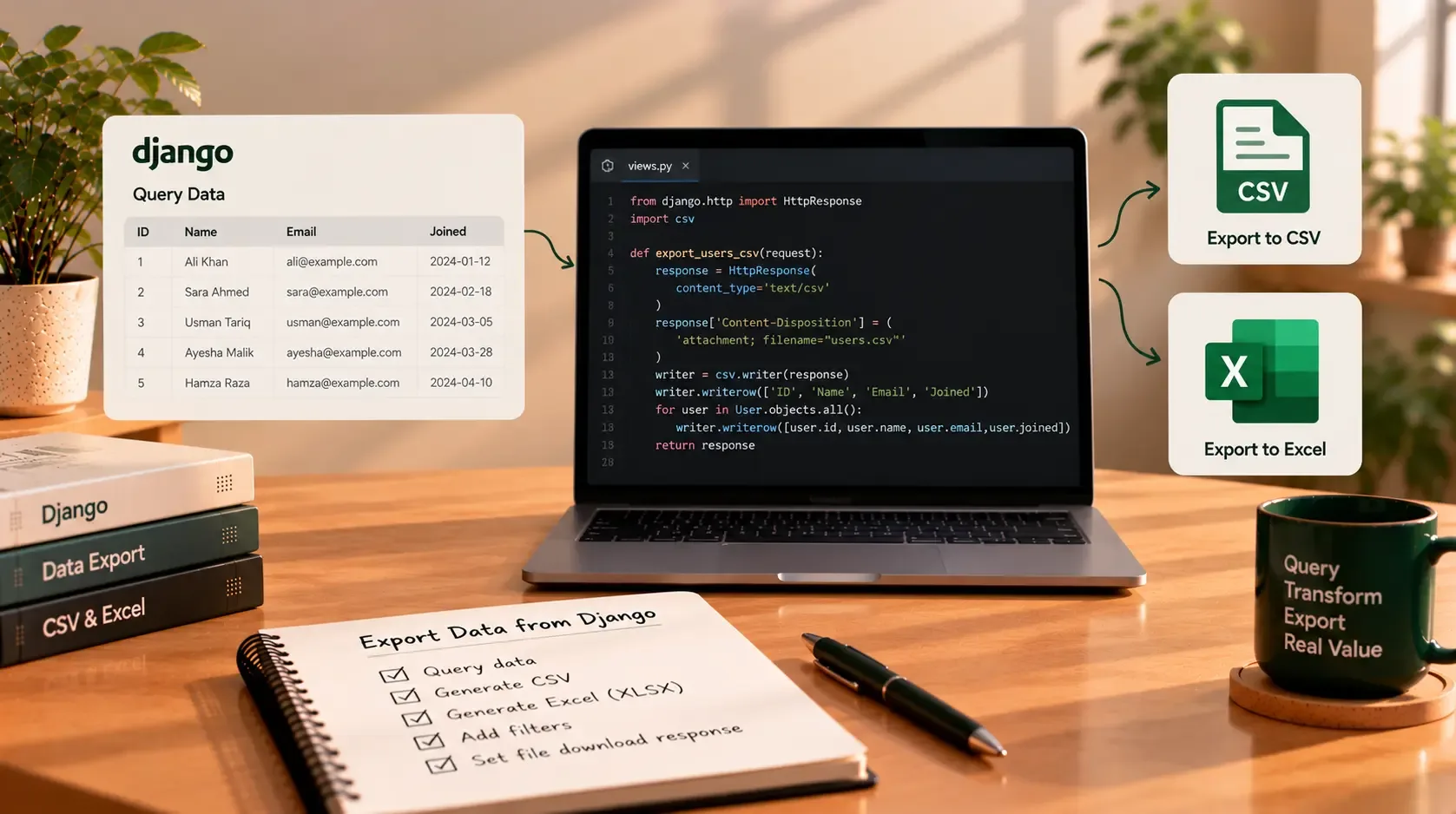
Exporting Data to CSV and Excel From Django
Business applications often need to turn database records into files people can download, share, review, or analyse. A customer portal might need an account list, an operations dashboard may need a report of open tasks, and a finance team may need transaction data for a spreadsheet.
Django can generate these exports directly from a view. For CSV files, Python's built-in csv module works well with Django's HttpResponse. For Excel workbooks, the openpyxl library can create .xlsx files with worksheets, column widths, number formats, and other useful presentation features.
This tutorial shows both approaches, including how to export a Django QuerySet, connect the views to URLs, protect sensitive records, and handle larger datasets more carefully.
CSV vs. Excel: which format should you use?
| Feature | CSV | Excel (.xlsx) |
|---|---|---|
| File structure | Plain text with delimited values | Workbook containing one or more worksheets |
| Styling | No cell formatting | Supports styles, widths, number formats, and more |
| Multiple sheets | No | Yes |
| Dependencies | Python standard library | Commonly openpyxl |
| Good for | Simple exports, integrations, data transfer | Reports people will review or work with in spreadsheet software |
| File size and generation | Usually simple and lightweight | More overhead; depends on workbook complexity and row count |
Choose CSV when users primarily need raw data or a simple file for another system. Choose Excel when presentation, multiple worksheets, or spreadsheet-specific formatting adds value.
Example model
Imagine a Django application has an Order model. The exact fields will vary by project, so use this as an example and adapt it to your own model.
# models.py
from django.db import models


class Order(models.Model):
    customer_name = models.CharField(max_length=200)
    customer_email = models.EmailField()
    status = models.CharField(max_length=30)
    total = models.DecimalField(max_digits=10, decimal_places=2)
    created_at = models.DateTimeField(auto_now_add=True)

    def __str__(self):
        return f"Order #{self.pk}"
The export will include the order ID, customer name, email, status, total, and creation date.
1. Export a Django QuerySet to CSV
Python includes a csv module, so you do not need to install a third-party package to create a basic CSV file.
Create a view in your app's views.py:
# views.py
import csv

from django.contrib.auth.decorators import login_required
from django.http import HttpResponse

from .models import Order


@login_required
def export_orders_csv(request):
    orders = Order.objects.all().order_by("id")

    response = HttpResponse(
        content_type="text/csv; charset=utf-8",
        headers={
            "Content-Disposition": 'attachment; filename="orders.csv"'
        },
    )

    writer = csv.writer(response)
    writer.writerow([
        "Order ID",
        "Customer Name",
        "Customer Email",
        "Status",
        "Total",
        "Created At",
    ])

    for order in orders.iterator():
        writer.writerow([
            order.pk,
            order.customer_name,
            order.customer_email,
            order.status,
            order.total,
            order.created_at.isoformat() if order.created_at else "",
        ])

    return response
How it works
Order.objects.all().order_by("id")retrieves records in a predictable order.HttpResponsesends the output back to the browser.content_type="text/csv"identifies the response as CSV content.Content-Dispositiontells the browser to offer a download namedorders.csv.csv.writer()handles CSV delimiters and quoting for values containing commas, quotes, or line breaks.writer.writerow()writes the header and each record.
The .iterator() method can reduce QuerySet result caching for large result sets. It does not, by itself, make the whole HTTP response streaming: this example still writes the generated CSV into HttpResponse before returning it.
Important: @login_required only checks that the user is authenticated. In a real application, also check that the user is permitted to export these records, and filter the QuerySet to the records that user is allowed to see.
2. Add a URL for the CSV export
In the app's urls.py:
from django.urls import path

from . import views

urlpatterns = [
    path("exports/orders.csv", views.export_orders_csv, name="export_orders_csv"),
]
Make sure the app's URL configuration is included in the project's root urls.py. You can then link to the export from a template:
<a href="{% url 'export_orders_csv' %}">
    Download orders as CSV
</a>
Use Django's URL reversing instead of hard-coding the path in templates. If the export should only be available to staff or users with a particular permission, enforce that rule in the view as well as controlling where the link appears.
3. Export a Django QuerySet to Excel
For a real .xlsx workbook, install openpyxl:
python -m pip install openpyxl
Create a workbook, add a worksheet, append rows, and save it to an in-memory buffer. The buffer can be returned as a downloadable response without writing a temporary file to disk.
# views.py
from io import BytesIO

from django.contrib.auth.decorators import login_required
from django.http import HttpResponse
from openpyxl import Workbook
from openpyxl.styles import Font, PatternFill
from openpyxl.utils import get_column_letter

from .models import Order


@login_required
def export_orders_excel(request):
    orders = Order.objects.all().order_by("id")

    workbook = Workbook()
    worksheet = workbook.active
    worksheet.title = "Orders"

    headers = [
        "Order ID",
        "Customer Name",
        "Customer Email",
        "Status",
        "Total",
        "Created At",
    ]
    worksheet.append(headers)

    for cell in worksheet[1]:
        cell.font = Font(bold=True, color="FFFFFF")
        cell.fill = PatternFill(fill_type="solid", fgColor="245B4A")

    for order in orders.iterator():
        worksheet.append([
            order.pk,
            order.customer_name,
            order.customer_email,
            order.status,
            float(order.total),
            order.created_at.replace(tzinfo=None)
            if order.created_at else None,
        ])

    column_widths = [12, 26, 32, 18, 14, 24]
    for index, width in enumerate(column_widths, start=1):
        worksheet.column_dimensions[get_column_letter(index)].width = width

    worksheet.freeze_panes = "A2"
    worksheet.auto_filter.ref = worksheet.dimensions

    for cell in worksheet["E"][1:]:
        cell.number_format = '#,##0.00'

    buffer = BytesIO()
    workbook.save(buffer)
    buffer.seek(0)

    response = HttpResponse(
        buffer.getvalue(),
        content_type=(
            "application/vnd.openxmlformats-officedocument."
            "spreadsheetml.sheet"
        ),
    )
    response["Content-Disposition"] = 'attachment; filename="orders.xlsx"'
    return response
A few details to understand
Workbook()creates an Excel workbook, andworkbook.activegives you its default worksheet.worksheet.append()adds each row.FontandPatternFillstyle the header row.freeze_panes = "A2"keeps the header visible while users scroll.auto_filteradds spreadsheet filters to the used range.BytesIO()holds the workbook in memory while it is generated.- The response's MIME type identifies an Excel Open XML workbook.
The example converts Decimal totals to float for straightforward spreadsheet output. If exact financial precision is important, choose and test a representation that preserves the application's required precision; avoid using binary floating-point arithmetic for calculations that must be exact. You may also export a formatted text value or use a carefully validated decimal strategy.
The example removes timezone information from the datetime value before writing it because Excel cells do not support timezone-aware datetimes. If timestamps are important, decide which timezone users should see and convert values deliberately before removing timezone information.
Add a URL for Excel in urls.py:
path(
    "exports/orders.xlsx",
    views.export_orders_excel,
    name="export_orders_excel",
),
Then link to it from the template:
<a href="{% url 'export_orders_excel' %}">
    Download orders as Excel
</a>
4. Export only the data the user is allowed to access
Export endpoints can expose many records at once, so permissions and filtering matter as much as file generation.
For example, if each order belongs to an account, scope the QuerySet to the logged-in user's account:
orders = (
    Order.objects
    .filter(account=request.user.account)
    .order_by("id")
)
This assumes your application has a suitable account relationship and that request.user.account is valid. Adapt the filter to your own data model.
For staff-only exports, use a staff check or Django's permission system as appropriate. Also consider:
- Exporting only the columns users actually need.
- Applying the same filters as the on-screen report.
- Recording who exported sensitive data and when, if your business requires an audit trail.
- Avoiding sensitive fields by default.
- Testing with users who should not have access, not only with administrators.
Hiding a download button in the template is not access control. The server must enforce the rule when the export URL is requested.
5. Handle large CSV exports more efficiently
The basic CSV example builds the response before sending it. For a very large export, Django's StreamingHttpResponse can yield rows as they are generated.
import csv

from django.contrib.auth.decorators import login_required
from django.http import StreamingHttpResponse

from .models import Order


class Echo:
    """A minimal file-like object for csv.writer."""
    def write(self, value):
        return value


@login_required
def export_large_orders_csv(request):
    orders = Order.objects.all().order_by("id").iterator(chunk_size=2000)

    pseudo_buffer = Echo()
    writer = csv.writer(pseudo_buffer)

    def rows():
        yield writer.writerow(["Order ID", "Customer Name", "Status", "Total"])

        for order in orders:
            yield writer.writerow([
                order.pk,
                order.customer_name,
                order.status,
                order.total,
            ])

    response = StreamingHttpResponse(
        rows(),
        content_type="text/csv; charset=utf-8",
    )
    response["Content-Disposition"] = 'attachment; filename="orders.csv"'
    return response
Streaming can reduce the need to hold the complete CSV response in memory. However, it keeps a request worker occupied while the response is delivered, and it does not make database queries or serialization free. For expensive reports or exports that may take a long time, consider generating the file in a background job, storing it securely, and allowing an authorised user to download it when ready.
For very large Excel workbooks, openpyxl has a write-only mode designed to reduce memory use while appending rows. Styling and worksheet features differ in write-only mode, so test the features you need before choosing that approach.
6. Protect spreadsheet users from formula injection
CSV files can contain a subtle security risk. If untrusted user input is exported and then opened in spreadsheet software, values beginning with characters such as =, +, -, or @ may be interpreted as formulas. This is commonly called CSV injection or formula injection.
The Python CSV writer correctly handles CSV syntax, such as quoting commas and double quotes, but CSV quoting alone does not neutralise spreadsheet formulas.
For exports that include user-controlled values:
- Identify which fields can contain untrusted input, including names, comments, labels, and imported data.
- Decide whether the export is intended for spreadsheet viewing or machine-to-machine processing.
- Apply a mitigation suited to the spreadsheet applications and downstream workflows you support.
- Test the exported file in the spreadsheet software your users actually use, including save-and-reopen scenarios where relevant.
There is no universal CSV sanitisation rule that is safe for every spreadsheet application and every downstream consumer. Some mitigations change the underlying value, which can affect later imports or comparisons. For XLSX exports, explicitly write untrusted values as text where appropriate and test the resulting workbook; do not assume that changing formats alone solves every spreadsheet security issue.
7. Keep the export code maintainable
When an application supports several reports, avoid copying a large block of export logic into every view. A small shared helper can centralise repeated tasks such as setting response headers or writing a common set of columns.
For example, define a function that accepts a response and a list of rows, or move report-specific data selection into a dedicated service function. Keep permission checks close to the request-handling layer so that every export endpoint is protected.
Also test more than whether a file downloads. Verify that:
- The file opens in the intended application.
- Headers and row values are correct.
- Empty QuerySets produce a valid file with headers.
- Dates, decimals, Unicode characters, commas, quotes, and line breaks are handled as expected.
- Users cannot export records outside their permissions.
- Large exports do not exhaust memory or tie up workers longer than your deployment can tolerate.
CSV or Excel: a practical decision guide
| Choose CSV when… | Choose Excel when… |
|---|---|
| Users need raw data for import or analysis | Users need a formatted report |
| A plain, single-table file is enough | You need multiple worksheets |
| You want a simple dependency-free implementation | You need cell styles, filters, widths, or number formats |
| The receiving system expects delimited text | The receiving team works directly in Excel-compatible tools |
Neither format automatically makes an export secure or performant. The right approach depends on the volume of data, the people who can access it, and what they intend to do with the file.
Final thoughts
Django makes it straightforward to offer downloadable reports. Use Python's built-in csv module for simple CSV exports and openpyxl when a real Excel workbook adds value. Set the correct response headers, scope the records to the requesting user's permissions, test the contents, and plan for memory and performance as exports grow.
For a real-world application, export functionality is part of the product workflow—not just a file-generation snippet. Think about who needs the data, which columns they need, how often they export it, and how the file will be used after download.
You can also explore Sajid Kalam's projects for examples of practical web application work, or contact Sajid to discuss a Django project.