
Report a Bug to a Developer Clearly
You click a button and nothing happens. A form refuses to submit. The website looks fine on your laptop but breaks on your phone. You report the issue to your developer, only to hear: “Can you show me what happened?”
That question does not necessarily mean your developer is ignoring the problem. They may simply need more information to reproduce it. A message like “The website is broken” describes your frustration, but it does not identify the exact action, page, device, or result that needs investigating.
Learning how to report a bug to a developer can reduce back-and-forth, make testing more efficient, and help your team confirm when the problem is genuinely fixed. You do not need to understand code to write a useful report. You need to describe what you did, what you expected, and what happened instead.
What Is a Bug Report?
A bug report is a clear record of a problem in a website, app, or software system. It helps a developer or QA tester understand the issue, reproduce it, investigate its cause, and test a fix.
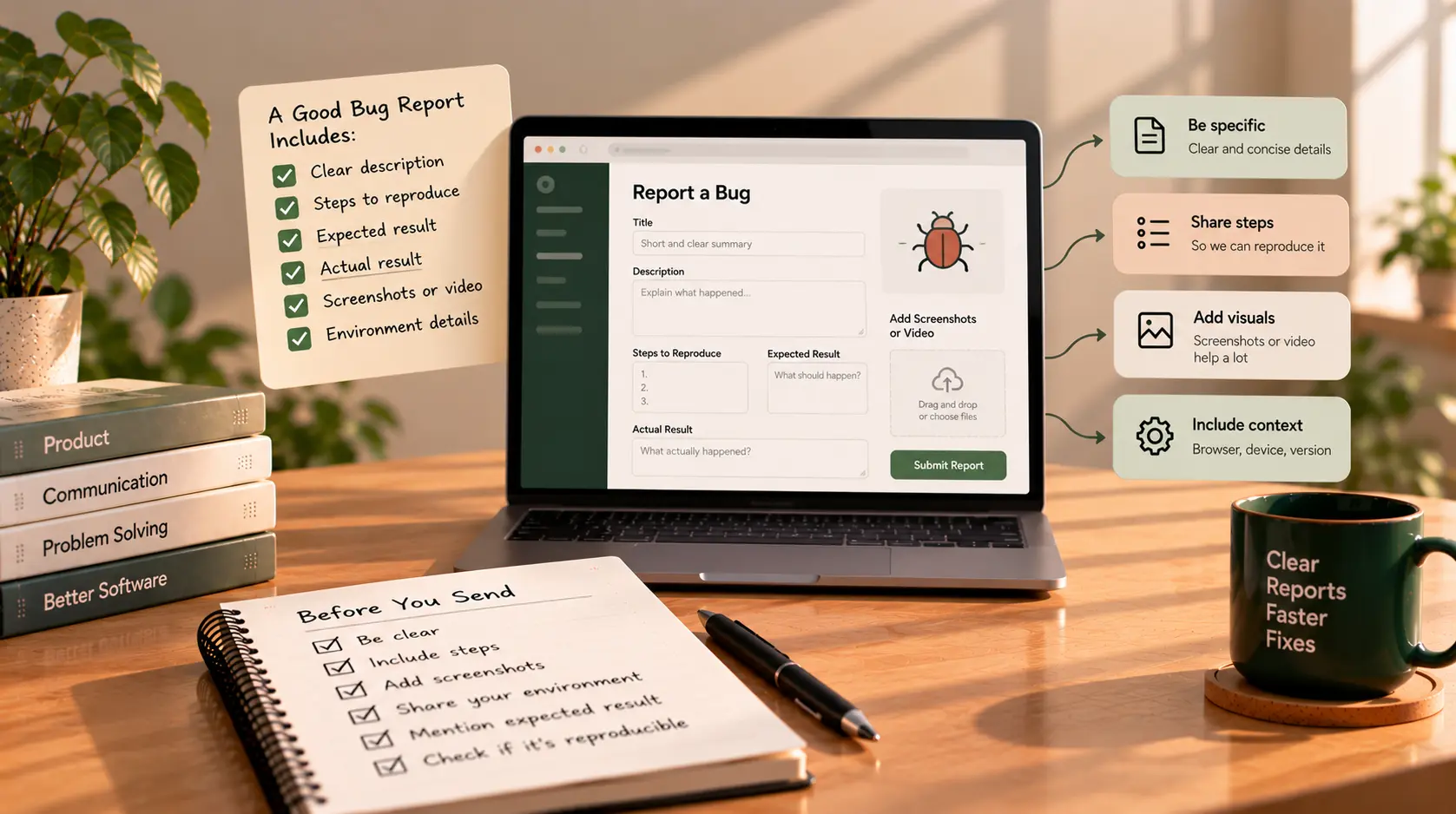
A useful report usually includes:
- A specific title
- The page or feature affected
- Steps to reproduce the issue
- The expected result
- The actual result
- Relevant screenshots, screen recordings, or error messages
- Device, browser, and other conditions that may matter
- The impact on users or business operations
The goal is not to guess what went wrong in the code. The goal is to give the developer enough reliable information to investigate it. Mozilla's bug-writing guidance similarly recommends clear summaries, precise reproduction steps, and separate expected and actual results (Mozilla Bug Writing Guidelines).
1. Give the Bug a Specific Title
The title should tell the developer what is failing and where it happens. Avoid vague descriptions such as:
- “Website issue”
- “Something is wrong”
- “Please check the form”
- “The button doesn't work”
Instead, describe the visible problem as specifically as you can.
| Vague title | More useful title |
|---|---|
| Login issue | Login form shows an error after submitting valid credentials |
| Mobile problem | Navigation menu overlaps the page content on iPhone |
| Payment bug | Checkout displays a blank page after clicking “Pay now” |
| Contact form issue | Contact form stays on “Submitting” after sending all required fields |
| Dashboard issue | Dashboard shows yesterday's data after refreshing the page |
You do not have to know the technical cause. Describe the action and the result you observed. “The checkout creates two orders when I click Confirm once” is more useful than “The order API is broken” if you have not verified the cause.
2. Explain Exactly How to Reproduce It
Reproduction steps are often the most valuable part of a bug report. They should allow another person to follow the same path and see whether the problem occurs.
Write the steps in the order you performed them. Start from a known point and include important details, such as which page you opened, which option you selected, and what you entered.
Weak report:
The booking form is not working. Please fix it.
Stronger report:
- Open
https://example.com/book-appointment. - Select “First appointment.”
- Choose Tuesday, 10 November, at 11:00 AM.
- Enter the required contact details in the test form.
- Click Confirm booking.
- Observe that the button continues spinning and no confirmation appears.
Use a real page URL and safe test data when sending your actual report. The example above is illustrative; replace it with the exact steps for your own issue.
If you cannot reproduce the issue every time, say so. For example: “This happened twice in five attempts, but I could not reproduce it on every attempt.” That is more helpful than presenting an intermittent issue as consistent.
3. Separate Expected Results From Actual Results
A developer needs to understand the difference between what should have happened and what happened instead. Keep these two descriptions separate.
Expected result: After clicking “Confirm booking,” the system should save the appointment and display a confirmation message.
Actual result: The button continues spinning for approximately 30 seconds. No confirmation appears, and the appointment is not visible in the user's booking list.
Be factual and specific. If you see an error message, copy its exact wording rather than paraphrasing it. If you are not sure whether the booking was saved, say that you could not confirm its status instead of assuming it was lost.
This approach follows established bug-reporting guidance: describe observable behavior and avoid guessing at the underlying cause (PostgreSQL Bug Reporting Guidelines).
4. Attach a Screenshot or Short Screen Recording
A screenshot can show a layout issue, a visible error, or the part of the page where something goes wrong. A short screen recording is often more useful when the problem depends on a sequence of clicks or changes over time.
Use visual evidence that demonstrates the issue:
- Screenshot: Useful for broken layouts, incorrect text, missing elements, or visible error messages.
- Screen recording: Useful for dropdowns that close unexpectedly, buttons that do not respond, loading loops, or multi-step failures.
- Error message: Copy the exact text if one appears.
- Relevant file or example: For technical problems, a small, safe example may help the developer reproduce the issue.
Before sharing evidence, check that it does not expose passwords, authentication codes, payment details, private patient information, or other sensitive data. Use a test account and redact information when necessary.
Do not send ten unrelated screenshots if one annotated image clearly shows the issue. Explain what the developer should look at in each attachment.
5. Include the Environment Where the Bug Occurs
A problem may appear only on a particular browser, device, screen size, account type, or environment. Tell the developer where you noticed it.
Include relevant details such as:
- Page or URL: Where the issue happens.
- Device: Desktop, laptop, tablet, or phone; include the model when relevant.
- Operating system: For example, Windows, macOS, Android, or iOS.
- Browser: Chrome, Firefox, Safari, or another browser; include the version if easy to find.
- Environment: Production/live website, staging site, or local test environment.
- Account or role: For example, administrator, staff member, or regular customer—never include passwords.
- Frequency: Every time, occasionally, or only once.
- Timing or conditions: For example, after refreshing, after a long wait, or only when a particular filter is selected.
You do not need to collect every technical detail for every issue. For a spacing problem on mobile, device and screen size may matter most. For a failed form submission, the exact inputs, account role, and any error message may be more relevant.
6. Explain the Impact on the Business or User
Not every bug has the same urgency. A small alignment issue and a checkout failure should not automatically be treated as equally important.
Explain what the problem prevents someone from doing and whether a workaround exists.
For example:
- “Customers cannot complete checkout, so online orders are being blocked.”
- “The admin report displays incorrect totals, which affects the weekly review.”
- “The mobile navigation is difficult to use, but visitors can still reach the pages through the footer.”
- “The issue happens only for one staff account; other staff members can complete the task.”
If you know how many users are affected, include that information. If you do not know, avoid guessing. Describe the impact you have actually observed.
If a problem involves a suspected security vulnerability, exposed private data, or unauthorized access, do not post sensitive details in a public channel. Contact the responsible team through its approved private security-reporting process.
7. Report One Main Issue at a Time
If the checkout button fails, the footer overlaps the page, and the confirmation email is missing, list them as separate issues—even if you noticed them during the same test.
Separate reports make it easier to assign responsibility, track progress, test each fix, and avoid closing a report while part of the problem remains unresolved. This also aligns with Mozilla's recommendation to create a separate report for each issue (Mozilla Bug Writing Guidelines).
You can still mention related issues when they share a clear context. For example, two visual problems may belong to the same page redesign, but each should be described distinctly so the team knows what needs to change.
8. Avoid These Common Bug-Reporting Mistakes
Do not only say “It doesn't work.” Describe the action that fails and the result you see.
Do not prescribe a technical fix unless it has been verified. “The page may be failing to load the saved data” is a hypothesis, not a confirmed cause. Start with the observable facts.
Do not omit the steps. A screenshot of an error may help, but it might not show how to trigger it.
Do not mix expected and actual behavior. Clearly label both so the developer does not have to infer what you wanted to happen.
Do not repeatedly send new messages with missing details. Gather the most relevant information into one report when possible.
Do not assume the fix is complete because the page looks normal once. Repeat the original steps after the developer says the issue has been fixed, and check the expected result.
Do not include secrets in a report. Never send passwords, private keys, authentication tokens, or unnecessary personal data in screenshots, logs, or messages.
9. Copy-and-Paste Bug Report Template
Use this template in your project management tool, email, or team chat. Fill in what you know; if a detail is unavailable, mark it as unknown rather than inventing an answer.
BUG TITLE:
[Describe the feature and the problem]

PAGE / URL:
[Where the issue happens]

SUMMARY:
[One or two sentences explaining the problem]

STEPS TO REPRODUCE:
1. [First action]
2. [Second action]
3. [Next action]
4. [Where the issue appears]

EXPECTED RESULT:
[What should happen]

ACTUAL RESULT:
[What happens instead]

ENVIRONMENT:
- Device:
- Operating system:
- Browser and version:
- Environment (live/staging):
- Account role (no passwords):

FREQUENCY:
[Every time / sometimes / happened once]

BUSINESS OR USER IMPACT:
[What users cannot do or what is affected]

ATTACHMENTS:
[Screenshot, short recording, or exact error message]

WORKAROUND:
[Is there another way to complete the task?]

ADDITIONAL NOTES:
[Any relevant detail you have verified]
You do not need to complete every field if it is irrelevant. A concise report with clear reproduction steps is better than a long report filled with unrelated information.
10. Example: Reporting a Contact Form Bug
Imagine a website visitor fills in a contact form and clicks Send message, but the page keeps loading. Here is how to turn that observation into a useful report.
Title: Contact form keeps loading after submitting valid details
Page: https://example.com/contact
Steps to reproduce:
- Open the contact page.
- Enter valid test details in all required fields.
- Select Send message.
- Wait 30 seconds.
Expected result: The form submits successfully and displays a confirmation message.
Actual result: The button remains in a loading state for 30 seconds. No confirmation message appears.
Environment: Windows laptop, Chrome browser, live website.
Frequency: Reproduced twice in three attempts.
Impact: Visitors may be unable to send enquiries through the website.
Evidence: A short screen recording showing the form submission and loading state.
This report does not claim to know whether the issue comes from the form validation, server, or email service. It gives the developer a clear path to investigate those possibilities.
11. How to Follow Up After Sending the Report
Once you submit a bug report, give the developer a chance to investigate. If the issue is blocking an important business process, state that impact clearly and use the team's agreed priority or escalation process.
When the developer says the bug is fixed:
- Repeat the original reproduction steps.
- Confirm that the expected result now occurs.
- Check a related flow if it is relevant—for example, submitting the form on mobile as well as desktop.
- Share the result with the developer.
- If the issue remains, reopen or update the report with the new behavior and evidence.
A useful follow-up might be: “I retested the contact form on Chrome desktop using the steps above. The confirmation now appears, and the enquiry is visible in the admin panel. I’ll also check the mobile flow.”
If the problem is still present, avoid simply saying “Still broken.” Explain which step you repeated, what happened this time, and whether anything changed.
Final Checklist Before You Send the Bug Report
- The title describes the actual problem.
- The page or feature is identified.
- The reproduction steps are clear and numbered.
- Expected and actual results are separate.
- Relevant device, browser, and environment details are included.
- Screenshots or recordings show the issue when useful.
- The impact and frequency are described without guessing.
- Sensitive information has been removed.
- Unrelated problems are reported separately.
Final Thoughts
You do not need to be technical to report a software bug well. Be specific about what you did, what you expected, what happened instead, and the conditions in which you saw the problem. Add a screenshot or recording when it helps, and keep your observations separate from guesses about the cause.
A clear bug report gives your developer a better starting point and makes it easier for both of you to verify the fix. It cannot guarantee an instant resolution, but it can reduce avoidable questions and help the team spend more time investigating the problem.
If you need help fixing or improving a website or web application, get in touch to discuss your project.